Browser voice not playing? Checks that help
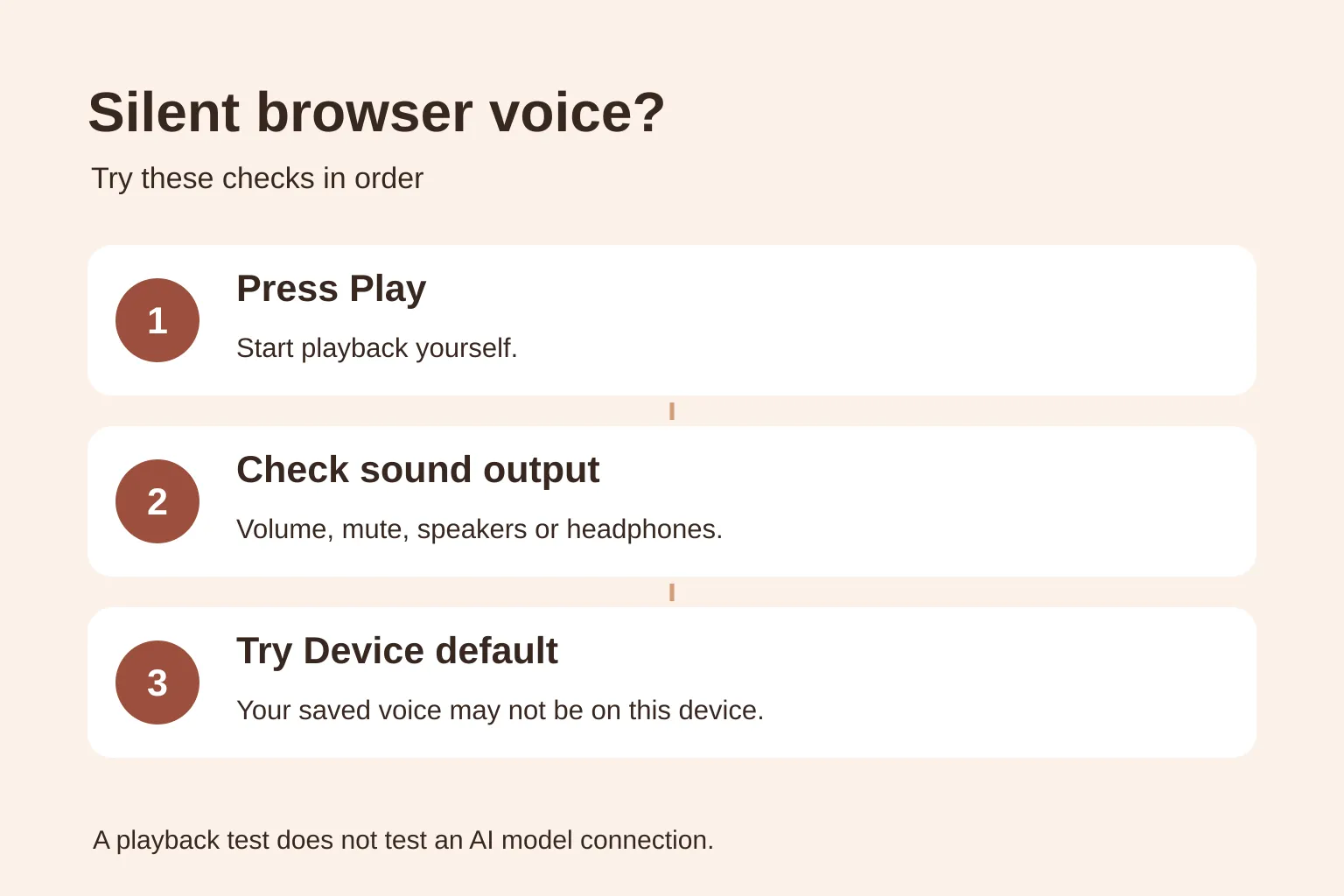
If your browser voice is not playing, press the sample’s Play button yourself, check your audio output, then try the device default or another listed voice. A saved voice can be missing on a new device because browser voices come from that device, not from your account. A silent speech sample does not, by itself, mean your AI model connection is broken.
Browser voice not playing: try these checks in order
- Press Play or Preview yourself. Keep the page open while testing. Don’t expect speech to start just because the page loaded: Chrome requires user activation before speech synthesis. An automatic-playback preference may still need an initial tap on Listen.
- Check where sound is going. Raise media volume, check browser or system mute controls where available, and confirm the selected speaker or headphones. Disconnect Bluetooth headphones temporarily if you’re unsure which device is receiving audio. Test another known audio source on the same device.
- Stop, then retry once. Use Stop while playback is active before starting a fresh sample. If Stop is disabled and the page reports that playback failed, choose another voice or check device settings before retrying. Repeatedly pressing Play can queue speech in some apps rather than fix the underlying problem.
- Try Device default, then another listed voice. If one voice works and another doesn’t, the problem is likely specific to that voice or language. Device default asks the browser to choose a fallback; it does not guarantee a particular sound. Use the natural 1× rate while diagnosing silence, then compare other rates once playback works.
- Let the voice list load. If the list is initially empty, give it a moment. After changing device speech settings or completing a voice download, reload the page and press Play again.
- Compare in another up-to-date browser on the same device. This helps separate a browser problem from a device speech or audio problem. Avoid changing several settings at once—you’ll lose track of what helped.
MDN’s browser compatibility guidance lists speech voice enumeration as widely available in Chrome, Edge, Firefox and Safari. That API support does not guarantee that every device has usable voices or exposes the same voice list. If a page says speech is unsupported, try a current full browser rather than assuming an embedded in-app browser has the same capabilities.
Why is my saved voice missing on a new device?
A saved voice preference identifies the voice you chose; it doesn’t download that voice onto another device. The browser’s available voice list comes from the current device. Changing operating system or browser can therefore change both the list and the sound of the default voice.
For example, say you save an English voice on a Windows laptop, then open the same account on an iPhone. Your account can still remember the choice even though the phone can’t offer that voice. Test an available phone voice or the default rather than deleting your account or resetting all your preferences.
Decide whether you want a temporary fallback or a replacement. In apps that preserve unavailable preferences, using a fallback lets you keep the original choice for your laptop. Choosing and saving a different voice may replace it. Read any missing-voice notice before saving; a successful preview alone is not proof that a new preference was saved.
Check your device’s text-to-speech settings
Text-to-speech is the service that turns written text into spoken audio. Test its own sample, where available, before returning to the browser. If that sample is also silent, start with the device’s speech engine and audio output.
- Windows: Open Settings → Time & language → Speech. Check the voice and use the preview. To add voices, look under Manage voices → Add voices. Microsoft provides voice settings guidance and voice installation steps.
- Mac: Open System Settings → Accessibility → Read & Speak → System voice. On older macOS versions, look for Spoken Content instead. Choose or sample a voice, and let any download finish. Apple’s Mac voice guide explains the options.
- iPhone or iPad: Look in Settings → Accessibility → Read & Speak → Voices; older versions use Spoken Content. Check the voice and dialect. See Apple’s current spoken-content guide and earlier settings labels.
- Android: Search Settings for Text-to-speech output. Check the preferred engine and language; its settings may offer Install voice data. Menu locations vary by manufacturer. Google’s text-to-speech settings instructions show the common path.
Installing a system voice is a useful check, not a promise that the browser will list it. Return to the browser’s voice menu to see what actually became available. You don’t need to turn on a screen reader or grant microphone access merely to play a written sample.
Use the playback error to choose your next check
An app may show a plain-language message rather than a technical code. If it does show a code, MDN defines the speech playback errors:
- not-allowed: Start again with a deliberate click or tap on Play.
- voice-unavailable or language-unavailable: Try another listed voice with the language you need, or the default.
- audio-busy or audio-hardware: Check your output device; close another app that may be holding audio resources.
- network: Check your connection. Some voices use an online speech service.
- synthesis-unavailable or synthesis-failed: Check the device speech service, then compare in another browser.
- canceled or interrupted: These can be expected after you press Stop; they don’t necessarily mean the voice is broken.
If an online voice fails, try one marked on-device if the app offers it. Online speech may send the sample text to a speech provider, so use a harmless test sentence rather than private information.
Does silent browser speech mean model access failed?
No. Browser speech reads text; model access generates an AI answer. A prepared voice sample tests playback without generating an answer, while an AI app can also receive text successfully and fail only when reading it aloud.
Troubleshoot the stage that failed. If text arrives but no sound plays, check speech and audio. If no answer arrives and the app reports a connection or access error, check that connection separately. Buying a subscription is not a general fix for silent browser speech; our ChatGPT subscription and voice-assistant guide explains the separate access question.
Try a short sample and keep your saved choice
Open Tavi’s free browser-voice preview, choose an assistant name and Voice on this device, and set Speaking rate to 0.75×, 1×, 1.25× or 1.5×. Press Preview voice to try the sample and Stop to end active playback. No account, microphone permission or model connection is needed; online voices may send the sample text to their speech provider.
To keep your choices, create a free account or open Assistant setup, set your name, voice and rate there, then press Save preferences and wait for Saved to your account. Play new replies automatically is off by default; leave it off to choose when to listen. If a saved voice is missing on this device, Tavi previews the device default without erasing that choice—even when you save a different rate or playback setting. Choosing and saving another voice replaces it. See the name, voice and playback setup guide for the full steps.
Preview and saved setup are free. Real conversations await activation of the official OpenAI API connection for approved pilot accounts; API usage is metered separately and does not use your ChatGPT chat limits.
If playback still fails, send your device, browser version, chosen voice and exact error to tavi@brainer.one. Don’t include passwords or API keys.