Choose your assistant’s name and voice
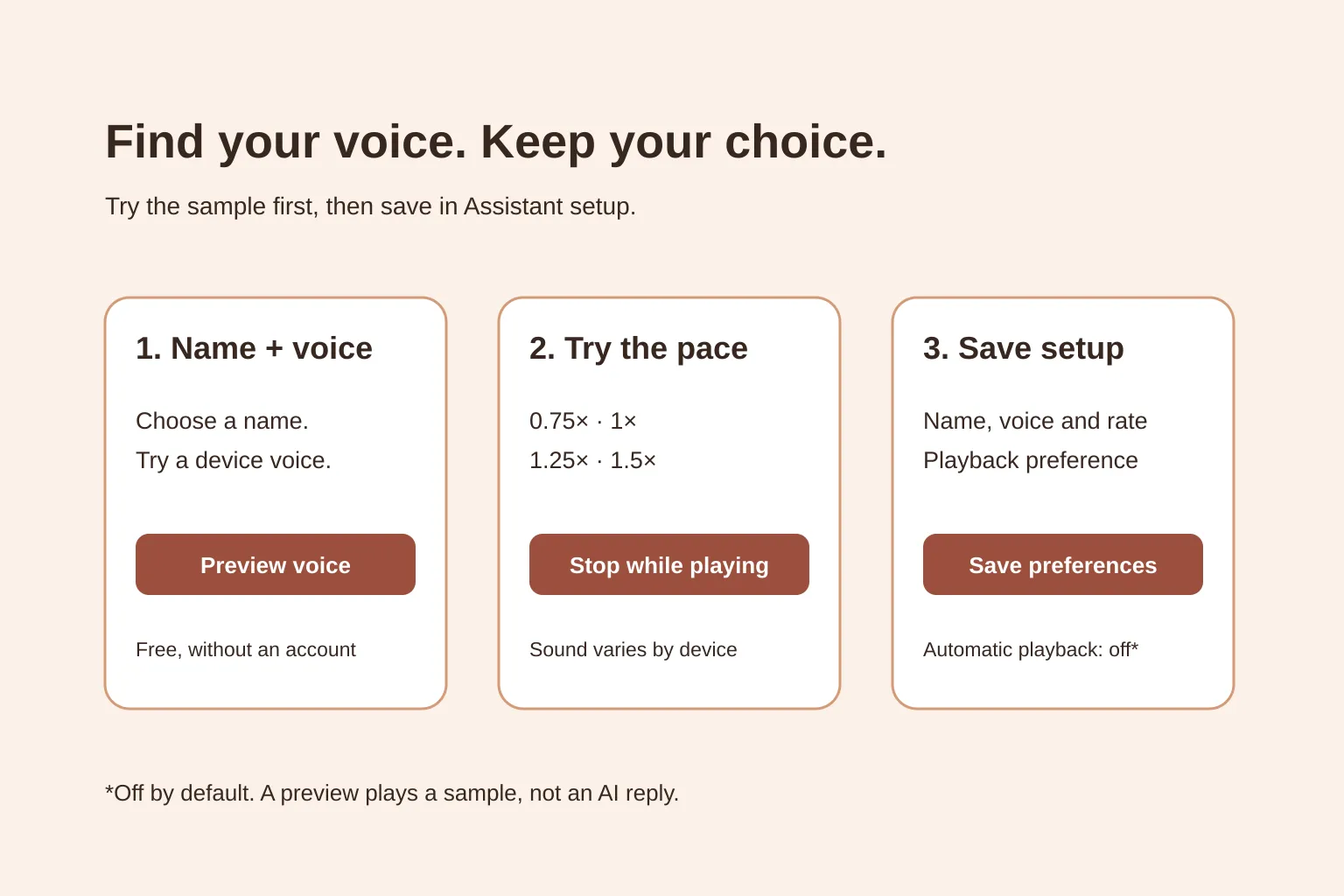
Choose your assistant’s name, then try a device voice at a comfortable speaking rate before saving your setup. Tavi’s free preview reads a sample sentence without an account, microphone access or model connection. Your account can save the name, voice, rate and whether new replies should play automatically.
Choose your assistant’s name
Pick something easy to say and remember. Noctis, Sol and Mira are examples, not different versions of Tavi. Names can be 1–40 characters long.
Try a voice and speaking rate for free
- Open the free voice preview and enter an assistant name.
- Under Voice on this device, choose a listed voice or Device default. Available voices vary by browser and device.
- Under Speaking rate, choose Slower · 0.75×, Natural · 1×, Faster · 1.25× or Quick · 1.5×. Start at 1×, then compare a slower or faster setting.
- Press Preview voice. The sample includes your assistant’s name; it is not an AI response.
- Press Stop while the sample is playing to end it. Stop is disabled when nothing is playing. Changing the voice or rate also stops current playback; press Preview voice to try the new choice.
The exact sound and pace depend on your device. If there are no named voices, try Device default. If the sample stays silent, follow these browser-playback checks. You can still save your setup when speech is unavailable.
Save your voice, rate and playback preference
Create a free account with your email and a password of 12–128 characters, or sign in to your existing account. Open Assistant setup and set your name, voice and speaking rate there before saving.
Play new replies automatically is off by default. Leave it off if you want to choose when to listen. Turn it on if you want Tavi to try reading each new model reply aloud when conversations are available. Your browser may still require a tap on Listen first, and you can stop active playback. The saved rate applies to previews and spoken replies.
After changing the settings, press Save preferences and wait for Saved to your account. Playing a preview does not save a preference. Check the saved name and voice summary to see the rate and playback choice stored in your account.
Keep your choice when a device lacks its voice
A saved voice preference is not a portable voice download. If you open Tavi on a device that lacks your chosen voice, previews use the device default while Tavi retains the saved choice. You can change and save the rate or automatic-playback setting without replacing that missing voice.
For example, say you save a voice and 0.75× on your laptop, then sign in on a phone without that voice. The phone previews its default at the saved rate. Leave the voice choice alone to keep your laptop preference; choose another voice and save if you want a replacement instead.
Know what a voice preview shares
No microphone permission is needed to play the sample. On-device voices process its text locally. Online voices may send the sample text, including your assistant name, to your browser or device’s speech provider. When online voices read replies, they may send that reply text too.
Try your setup, then keep it
Try the free voice preview, then create an account or return to Assistant setup to save your preferences. Preview and setup are free. Real conversations await activation of Tavi’s official OpenAI API connection for approved pilot accounts; API usage is metered separately and does not use your ChatGPT chat limits. See our ChatGPT subscription and voice-assistant guide for model-access and cost details.
Need a hand with setup? Write to tavi@brainer.one.